Sat, Oct 3, 2020
N Tricks for Better Shortcuts
Recently I’ve been playing with the iOS Shortcuts app to make checklists, draft blog posts, time my coffee, combine images and other quick tasks. If you haven’t given it a try yet, it’s essentially drag and drop programming environment that allows you to quickly and easily create powerful programs that run on your iOS device. It has built in ’actions’ for a large amount of features, from creating for loops, to more complex actions like image resizing, and running scripts over ssh.
Shortcuts is a lot more user friendly then a full blown programming language and allows you to do useful things without having to worry about annoyances like package management or the terminal. A user can go from 0 to automatically uploading 50 resized photos to facebook in less time then it takes to write ‘Hello World’. For more advanced users it offers the opportunity to do simple tasks quickly and to genuinely have /fun/ with a new programming language.
With that in mind I wanted to share some of the tips and tricks I found that made my life easier. This won’t be a complete tutorial on using Shortcuts (I’ll post a couple of links at the bottom of the article) but I think this should help out any newcomers to Shortcuts get started more quickly.
View Action info
This is one of the most basic tips, but click the (i) icon to view more details about a given action. This will give you an idea of the type of input and outputs an action has and how to best use it. Here’s the info dialog for the “Match in Text” action:
Searches text passed into the action for matches to a regular expression.
Case Sensitive When disabled, the capitalization of letters is ignored.
Input Text
Result (Text Match) A list of text items that matched the regular expression
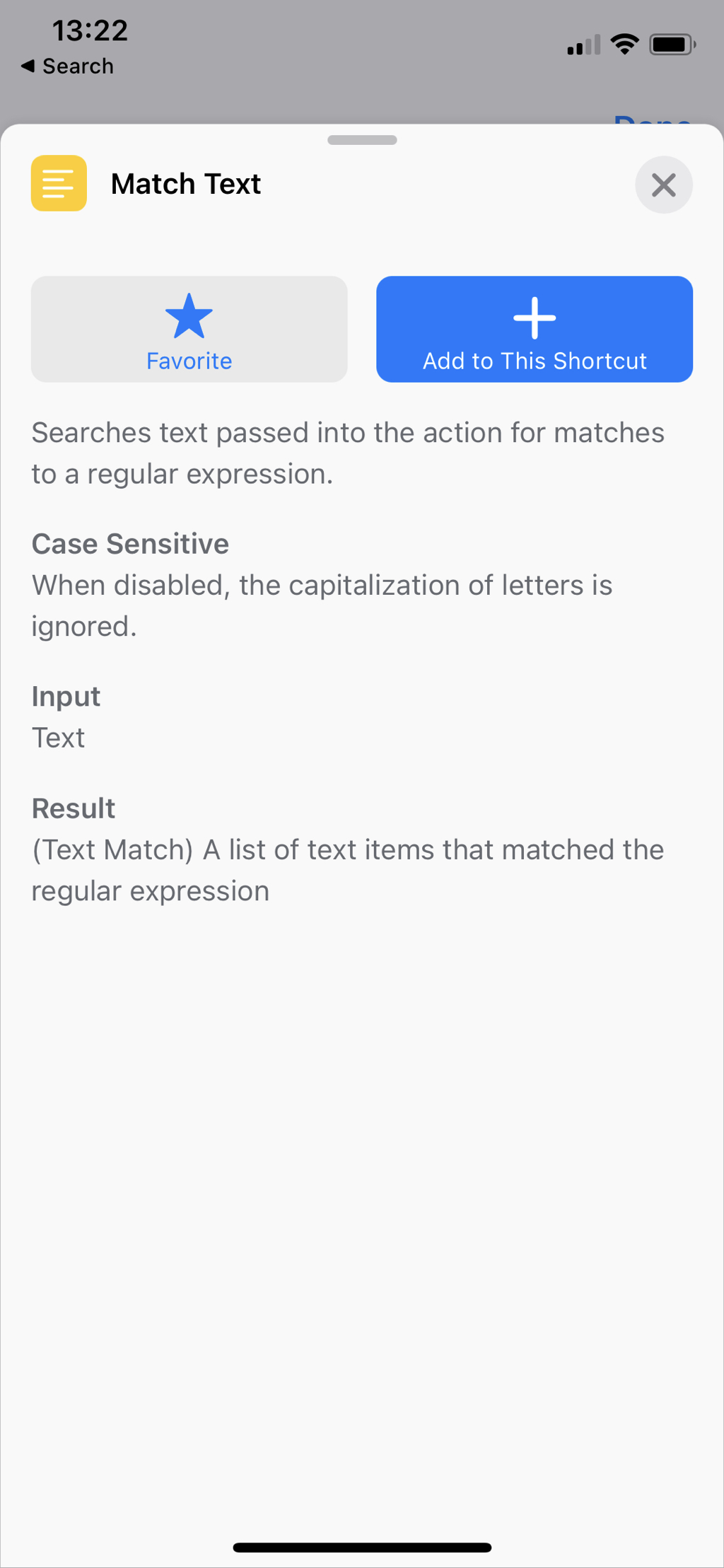
Without reading that info it would be unclear that “Match in Text” returns something other then a simple Text result. Instead it returns a special Text Match type which can be turned into a Text, but can also be used by functions like “Get Group From Matched Text” to extract Text from a regular expression group.
Use Magic Variables
One of the most fundamental features of Shortcuts is its use of ‘magic variables’. These represent the inputs and outputs of actions and automatically (or dare I say, automagically) get used when inserting one action after another. However there are some nuances that are important to address and realize. For example, two variables can have the same name but represent different pieces of information. For example, take this simple text based Shortcut:
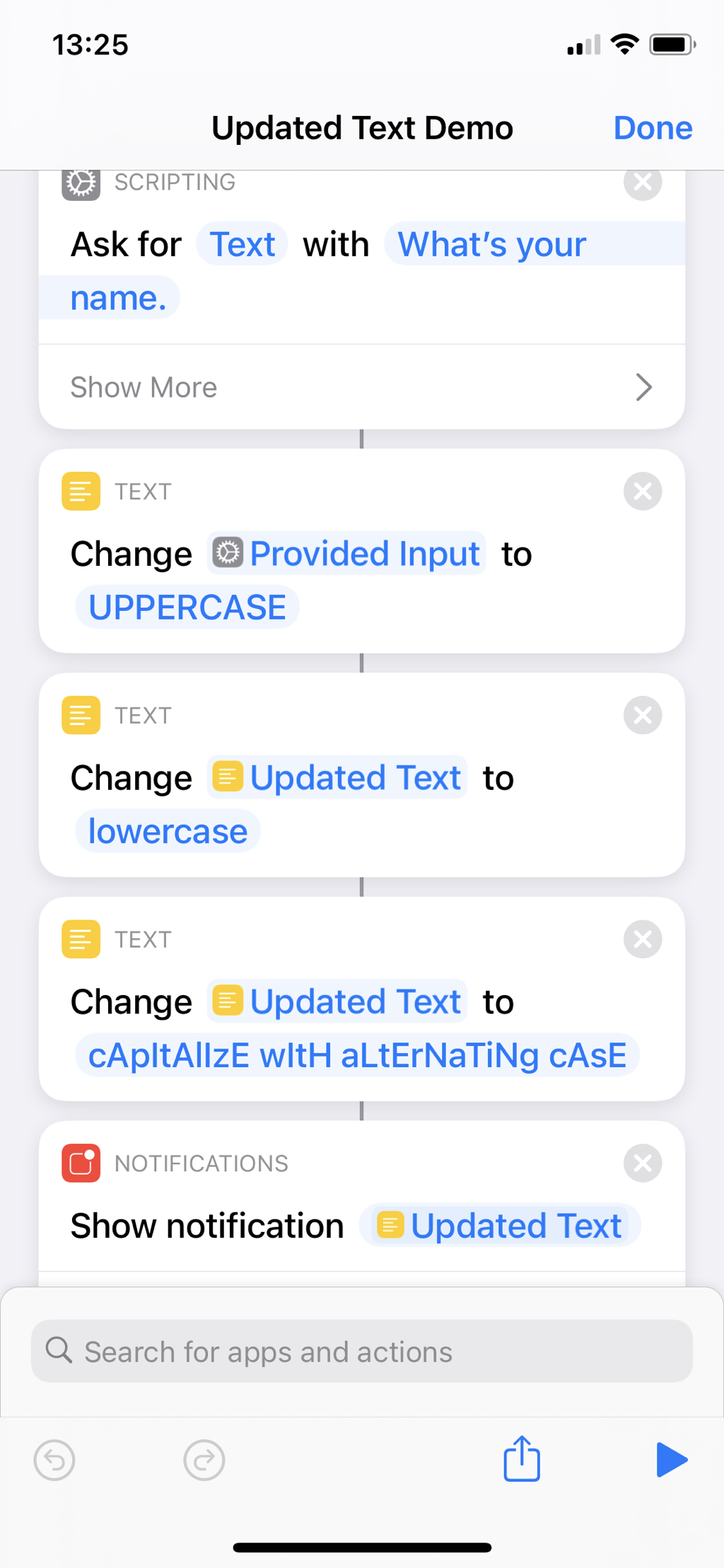
You can see that there are three cases of Updated Text appearing as magic variables. In the last action we display this text in a notification. What happens if we move the notification action to above the “Change Updated Text to cApItAlIzE wItH aLtErNaTiNg cAsE” action? One could expect that it would use the Updated Text from the “Change Updated Text to lowercase” action, but it doesn’t! It breaks instead. From this we find out that the Updated Text variable is actually 3 separate variables that all have the same name. To fix this, we can delete the variable from the notification, and choose the correct variable by tapping Variables > Select Magic Variable and choosing the variable, as shown here:
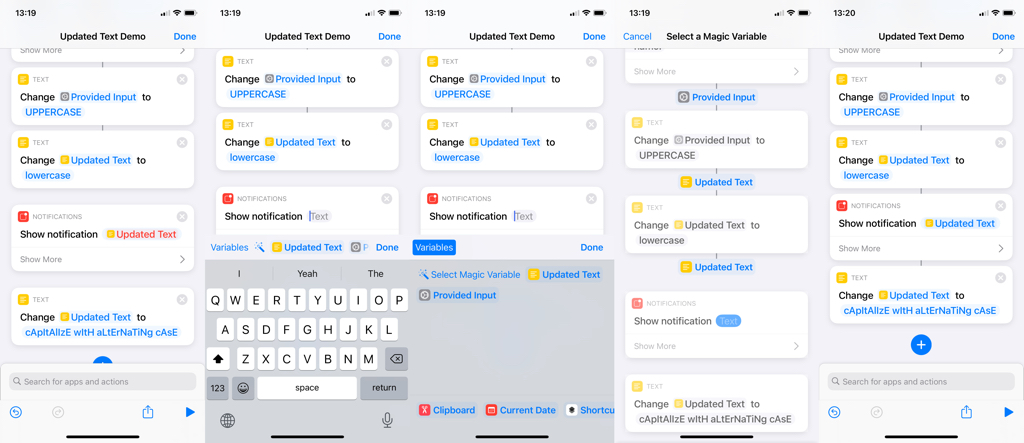
The variables above the keyboard are always the ‘correct’ variable from the actions directly above. A slightly cleaner way of resolving this issue is to tap the magic variable and then rename it like so:
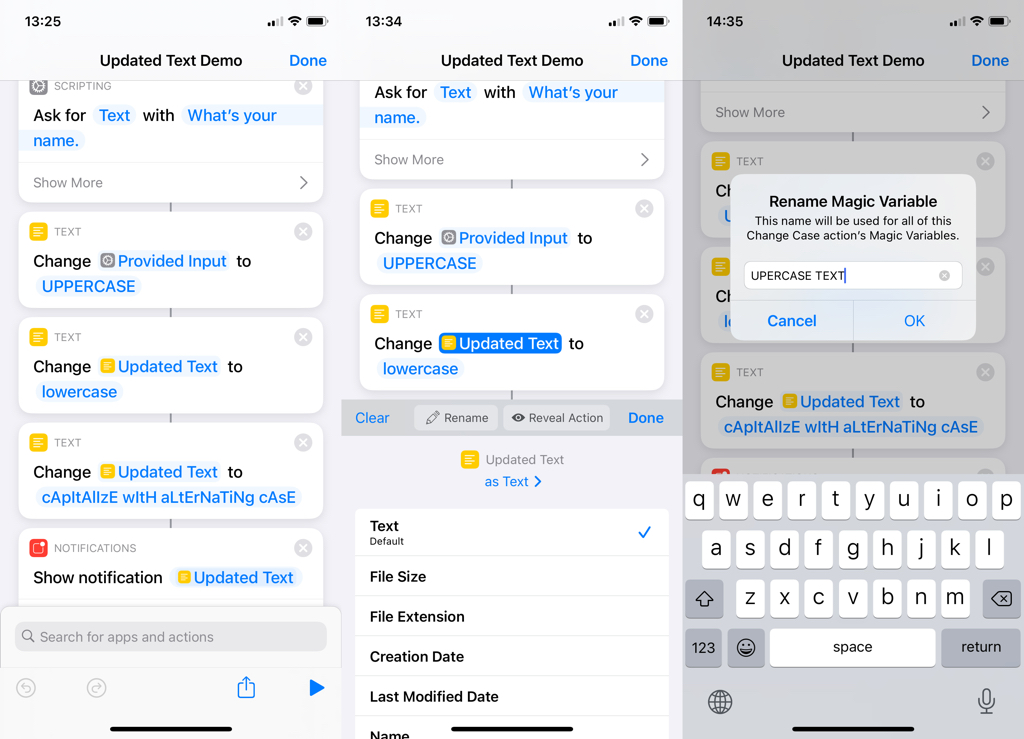
Tapping the magic variable also shows a range of options that allow you to change how the variable is used. For example with the Current Date variable you can change the format of the date. (i.e. show “October 1st, 2020” as “2020-10-01”). Some options are surprisingly powerful. Changing the ‘as Text’ to ‘as PDF’ lets you turn any content into a PDF quickly and easily. I found that using these options lets you skip some actions in your Shortcuts and unlocks new behaviours to transform data types.
Combine Text within the input to Actions
There is a “Combine Text” action but it is for joining a list of Text objects together with spaces or commas. Instead of using that action, I found it much easier to combine different variables and my own text directly into the input of the action where I used it.
For instance, suppose I want to access to the Astronomy Picture of the Day by opening the URL. As an example, September 30, 2020’s URL was https://apod.nasa.gov/apod/ap200930.html. We can see it has a fixed section (https://apod.nasa.gov/apod/ap), a date in a particular format (200930), and then another fixed section (.html). I know I can get the date from the Current Date magic variable but I need to combine it with some other text. To do that we can write in the fixed section, and combine that in line with a magic variable like so:
https://apod.nasa.gov/apod/ap<Current Date>.html
Here’s a series of screenshots that show how to select and use the Current Date to output the correct format in the middle of the URL.
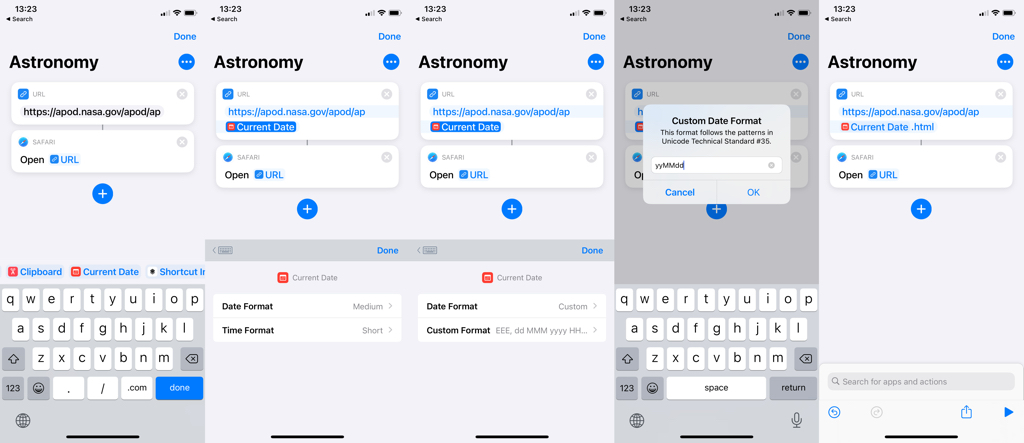
You can access the Shortcut I created for this example here.
Note: you may need to go to Settings > Shortcuts and enable ‘Allow Untrusted Shortcuts’ to copy and download third-party Shortcuts. Only open third-party Shortcuts if you trust the creator the Shortcut. You will have a chance to review the contents of any third-party Shortcut before you add it to your library.
I hope these tips help you get started with Shortcuts and unlock the full potential of the app. I’ve had a lot of fun playing around with the app, and just building fun little tools. I’ve linked a couple of my Shortcuts below, along with some other tutorials on getting started with Shortcuts. Happy Shortcutting!